
In a Linux system, users refer to individuals or entities that interact with the operating system by logging in and performing various tasks. Managing users in Linux is a fundamental aspect of system administration, allowing you to control access to the system and its resources. Incorrectly set user permissions are a security vulnerability and, in some cases, may render the Linux system inoperable.
A user in Linux is associated with a user account, which consists of several properties defining their identity and privileges within the system. These properties are a username, UID (User ID), GID (Group ID), home directory, default shell, and password.
Types of Users in Linux
In Linux, users are categorized based on their roles, permissions, and the kind of access they have to the system's files and resources. Understanding the types of users is crucial for managing security and permissions on a Linux system. Here are the primary types of users found in Linux:
| Account Type | Access Level |
| Root User | The root user, also known as the superuser, has unrestricted access to the system. This user can perform any operation, including tasks that can affect the system's operation and security. Because of the extensive capabilities, it's advised to use the root account only when necessary. |
| System User | System users are created to run specific system services and automated services. For example, a web server service might run as a www-data user, and a database service might run as a mysql user. These users do not have login access to the system and are used to isolate service permissions for security reasons. UID range is typically from 1 to 999 (but this can vary based on the distribution) |
| Sudo User | A standard user who has been granted permission to execute certain commands as the root user. Every command that requires root privileges must be preceded with the sudo command. |
| Standard User | Regular users are the standard accounts used by people to interact with the system. They have permissions to run programs, read files they own, and modify their home directories. They cannot perform actions that affect core system settings or other user accounts. The system administrator can elevate their permissions temporarily using sudo or su for specific tasks. Users with interactive login accounts are given a UID of 1000 and above; |
| Guest User | Guest users are temporary accounts with very limited access rights. They are typically used for single sessions and might have access only to basic applications and the internet. Their permissions are severely restricted to protect the system's integrity. They do not require personal files and settings. |
Understanding User Management Files
In Linux, user management revolves around several key files that store information about users, their passwords, groups, and group passwords. These files are critical for system security and user management tasks. Here's an overview of these essential files:
/etc/passwd- The passwd file contains a list of user accounts and the corresponding user ID, group ID, home directory, and the default shell. It is readable by most users, but only root and sudo accounts can add new users or remove and modify existing user data.
/etc/shadow- This file stores encrypted user password information and other password-related data such as the password expiration date, last change date, and account expiration date. It is only accessible by the root user or users with appropriate privileges. The restricted access and encryption add another security layer compared to the /etc/passwd file.
/etc/sudoers- This file specifies which users have elevated permissions, on which machines, and for which directories. Admins can use this file to configure permissions for users and groups to use the sudo command./etc/skel-The skel directory contains default configuration scripts and templates such as .bashrc and bash_profile. The templates are copied to the user's home directory when a new user is created, streamlining the provisioning of new user accounts.
Best Practices for User Management in Linux
Effective user management in Linux is essential for maintaining system security, performance, and user accessibility. Here are some best practices in short:
Avoid using the root account for daily tasks. Grant administrative privileges to trusted users via the
sudomechanism.Follow the principle of least privilege (PoLP). Users should have only the permissions necessary for their roles.
Periodically review user accounts and remove or disable those that are no longer in use or are temporary.
Use strong password policies.
For temporary users or employees, set account expiration dates.
Keep track of user activities, especially for users with
sudoprivileges. Tools likeauditdcan be configured to monitor and report on specific user actions.As users change roles within an organization, regularly update their group memberships and permissions to reflect their current needs.
Educate users about security best practices, including password security, phishing awareness, and safe internet usage.
Regularly backup user data and configuration files. This includes home directories and critical system files like
/etc/passwdand/etc/shadow.For environments with multiple Linux systems, consider centralizing user management using LDAP, Active Directory integration, or other directory services to streamline the process.
Hands-on Exercise Overview
Linux, being a multi-user system, provides a comprehensive set of tools and commands for user management. This hands-on shows how to add, modify, and remove a user on Ubuntu 20.04.
Hands-on Exercise
To find out which users and how many users you have on the server, run:
cat /etc/passwd | wc -lTo determine which users are currently logged in a Linux system, use:
who -H
To create a new user, run:
sudo useradd usernameRoot privileges are required when adding a new user to the system because system-wide changes happen. The command does not provide any output.
💡By default,useraddcommand adds normal user accounts.To verify if the new user is visible, run:
cat /etc/passwd | grep username
To add a system user, add the
-roption:sudo useradd -r sysuser💡The system user is useful when you automate any tasks. It does not log in interactively and is used for running in the background and scheduling tasks and processes. Desktop distributions will not show a system user on the login screen because if it did show, there would be a mess.To add a user with a home directory, use the
-moption:sudo useradd -m username ls -l /home/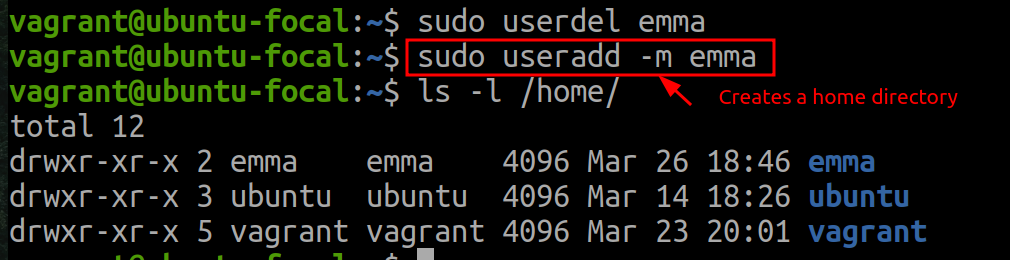 💡Always use the
-moption withuseraddif you want the home directory to be created automatically. Some distributions might have defaults that automatically create the home directory, but it's good practice to explicitly use the-moption to ensure consistency across different environments.Each Linux distribution can set its own default values for the
useraddcommand. These defaults are typically configured in the:cat /etc/default/useradd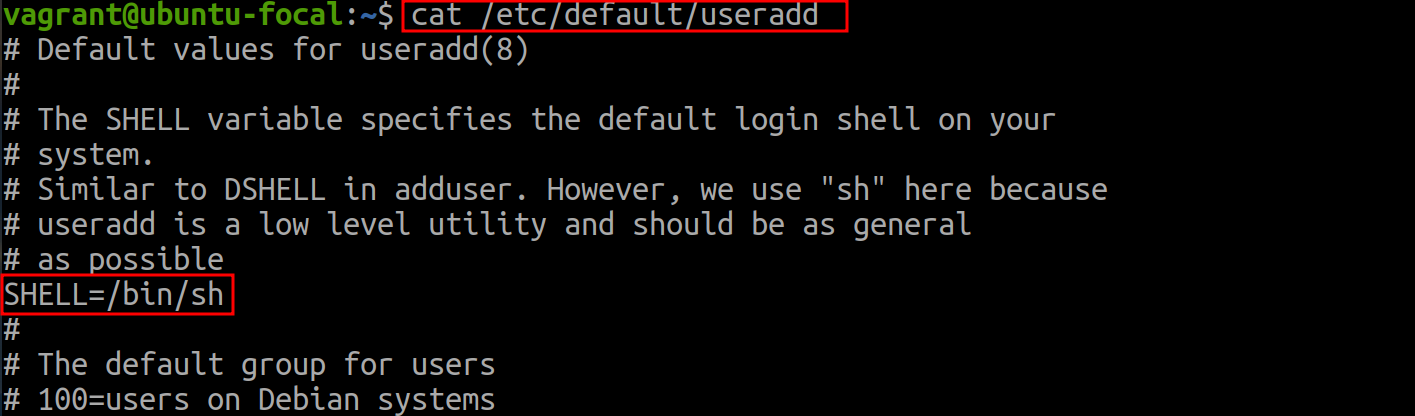
To modify various attributes of an existing user account in Linux, use
usermodcommand. Visit for more information: Linux usermod Command ExplainedTo remove a user account, use:
sudo userdel usernameWhen a user is deleted from the system, its home directory is not deleted by default.
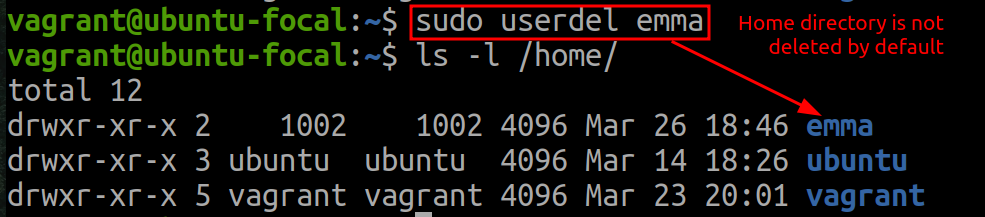
To remove a user account with its home directory, use
-roption:sudo userdel -r username
To change the password for another user, run:
sudo passwd usernameSince root privileges are accessed, the current password of the user is not asked.
References
About the author
Postgraduate in Communications Engineering with working experience in the Support Desk and self-study in software development.